Fast PDF Reader
- 3.4
- Rating
- 500.00K
- Installs
- Free
- Price
 Analysis by App-foxy
I spent time with Fast PDF Reader as a practical document tool rather than treating it like a full office suite. That distinction matters. This is a free productivity app from STARSPEED LIMITED, aimed at people who mainly need to open PDFs and other documents without turning a simple reading task into a complicated project. My overall impression is straightforward: it can be useful when your priority is getting a file on screen quickly, but its value depends heavily on how demanding your document routine is.
The app has a 3.3 average from around 1.2 thousand ratings, which suggests a mixed experience among users. I can understand that balance. A lightweight reader has an appealing purpose, yet expectations rise quickly when people want editing, cloud collaboration, annotation, or advanced document management. Fast PDF Reader makes the most sense when you judge it as a reader first, not as a replacement for every document app on your phone.
How I would use Fast PDF Reader in a normal day
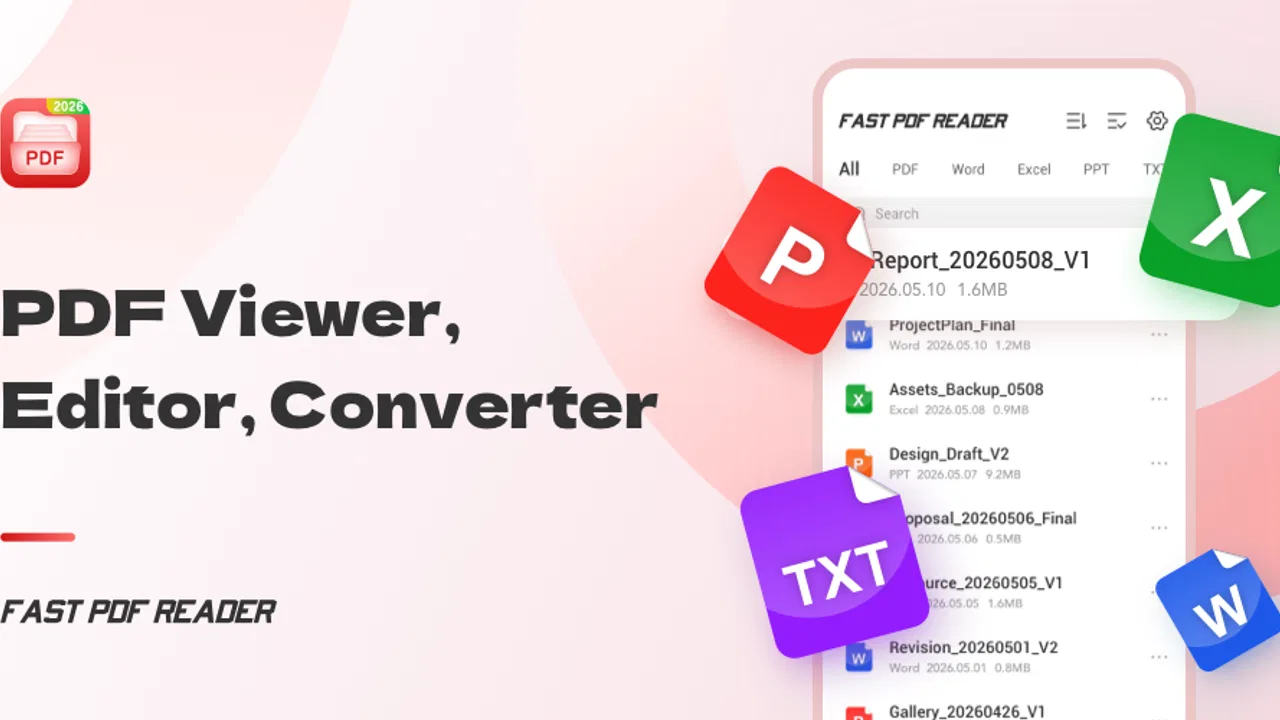
My baseline workflow with an app like this is deliberately simple. I receive a PDF, open it from the phone, check the relevant pages, and close it again. For a timetable, a work handout, a downloaded manual, or a form that I only need to inspect, speed and clarity matter more than a long feature list. Fast PDF Reader is built around that kind of moment, matching its short store description as a fast PDF reader without making the task feel like document production.
You May Also Like

 Blood Strike: 2.5 Anniversary
Blood Strike’s Loadouts Turn Every Drop Into a Tactical Gamble
A close look at Blood Strike’s custom loadouts: how fast access to signature weapons reshapes its battle royale rhythm, rewards preparation, and narrows the gap between fights.

 Pandora - Music & Podcasts
Pandora’s Music Is Easy to Start, but Harder to Recover
Pandora’s strength is its low-effort path from a seed to a station. Its weak spot is how much confidence it asks you to place in connection, setup, and quiet recovery.

 8 Ball Pool
 Is Built on Rivalries, Rematches, and Routine
A close look at the rivalries, rematches, shared routines, and unanswered safety questions that turn a quick pool match into a persistent mobile community.

 Samsung Music
’s Quiet Strength Is Playing What You Already Own
Its reach comes less from spectacle than from dependable access to a personal library. That simplicity is both the app’s strongest retention engine and its ceiling.

 AccuWeather: Weather Radar
AccuWeather Review: A Quick, Clear Forecast for Everyday Decisions
For everyday plans, the best forecast is the one you can understand quickly. AccuWeather makes rain timing, radar, and local conditions easy to act on, with a few trade-offs.

 Hill Climb Racing
Why Hill Climb Racing Still Turns Crashes Into One More Run
A tiny car, a bumpy hill and one more upgrade: Hill Climb Racing keeps resurfacing because its simple chaos makes every near-miss feel personal.
More From Our News Desk



A realistic example is receiving a several-page travel document while away from a computer. I would open it, move through the pages to find the section I need, zoom in on small text, and keep the phone in portrait mode for ordinary reading. If a page contains a wide table, I would switch my approach rather than trying to read everything at once: zoom out to understand the layout, then enlarge only the row or column that matters. That small habit prevents the constant pinch-and-drag movement that makes mobile PDF reading tiring.
The same approach works for school notes or a work reference file. I would first scan the document visually, identify whether the important information is concentrated near the beginning or end, and then read the useful section carefully. A reader app is most efficient when I already know what question I am trying to answer. Opening a document with no plan can turn even a fast viewer into a slow browsing session.
One practical strength of a dedicated reader is separation. I do not have to open a word processor just to inspect a file, and I am less likely to accidentally enter an editing mode or change content. That makes Fast PDF Reader suitable for people who download documents frequently but rarely need to modify them. It also fits a phone used as a secondary screen, where the goal is checking information rather than building a finished document.
Its audience is therefore fairly clear. I would recommend trying it if you want a focused way to view PDFs and other documents, especially if your current method involves opening files in whichever app happens to claim them first. I would be more cautious if you expect a complete document workspace. Reading, editing, signing, organizing, and sharing are different jobs, and a compact reader should not automatically be judged as though it were designed for all of them.
Start with a repeatable file-opening habit
Experienced users usually save more time through routine than through constant tapping. I would keep a simple habit: open a file, confirm that it is the correct document, scan its structure, and only then begin detailed reading. This is especially useful when several similarly named downloads are present. The reader can display a document, but it cannot replace a sensible naming and filing habit outside the reading session.
For recurring work, I would also avoid treating every PDF as something that must be read from page one. First-page scanning, visual cues such as headings, and a quick check of the final pages can reveal whether the file is a report, an instruction sheet, or a form. That workflow is more efficient than repeatedly swiping through the same pages whenever the document is opened.
Settings and controls worth checking before regular use
My first recommendation after installing Fast PDF Reader would be to spend a short session checking how it behaves with ordinary files. The current version is 1.0.2, so I would keep expectations sensible and look for the controls that affect comfort rather than hunting for elaborate professional tools. The most important questions are practical: how easily can I move between pages, how comfortable is zooming, and does the app make it obvious which document is open?
Reading comfort should come before speed. On a small phone, a page that looks fine at its original size may be too cramped for sustained reading. I would test portrait and landscape orientation with a document containing both paragraphs and a table. Portrait is usually easier for continuous text, while landscape can reduce horizontal movement on wide pages. The trade-off is that landscape may make ordinary pages feel smaller, so I would use it selectively instead of leaving the phone in one orientation all the time.
Zoom is another setting-like behavior worth learning, even when it is controlled directly on the page. I prefer a two-stage pattern: zoom to a comfortable reading width, then use a smaller adjustment for dense sections. Excessive zoom creates a new problem because every line extends beyond the screen. If the app remembers the reading position or view in a particular situation, that can help, but I would not build a workflow around assumed behavior. I would simply check what happens with the same file after closing and reopening it.
File access is also worth testing early. I would open a document from the location where I normally receive it, rather than only from a sample file already on the device. A reader is only convenient if it fits the route I use in real life, whether that means selecting a download, opening a shared file, or browsing documents stored locally. If the path feels awkward, the problem may be less about the page viewer and more about how the phone hands documents between apps.
Because the app is rated for Everyone and supports devices starting with Android 8.0, it is positioned for broad everyday use rather than a narrow professional audience. That does not guarantee identical behavior on every phone, though. Screen size, Android interface changes, and the way a manufacturer handles files can all affect comfort. I would test it on the device that will actually be used for reading instead of assuming that a good experience on one phone will feel the same elsewhere.
There is also a useful privacy-minded habit here: open only the document you need and close the session when finished, particularly on a shared device. I am not claiming a special privacy feature; this is simply good document hygiene. A reader app can make files convenient to access, which is helpful, but convenience should not turn into leaving sensitive pages visible in a recent-apps screen or handing the phone to someone with the document still open.
Make the screen work for the document
There is no single ideal viewing arrangement for every PDF. A text-heavy file, a scanned form, and a spreadsheet-like report demand different handling. For text, I would favor a stable zoom level and vertical movement. For a scanned document, I would expect to zoom more often because the page is effectively an image. For a wide table, I would use landscape when possible and move in short horizontal steps rather than dragging across the entire page.
This sounds basic, but it is one of the more useful differences between casual and experienced use. Instead of blaming the reader whenever a page feels uncomfortable, I change the viewing method to match the file. Fast PDF Reader is most helpful when I treat it as a flexible window onto documents, not as a tool that can automatically make every layout mobile-friendly.
Faster patterns for repeat reading
For people who open documents often, the biggest improvement comes from reducing repeated decisions. I would group my own reading into three patterns. Quick checks are for finding a date, name, or instruction. Focused reading is for one or two relevant sections. Full review is for a document that genuinely needs attention from beginning to end. Each pattern deserves a different pace, and using the full-review approach for every file wastes time.
For a quick check, I would scan the first page, identify the document structure, and move directly toward the likely section. If headings are clear, this is usually faster than reading every paragraph. For focused reading, I would stop once the question is answered and note the page externally if I need to return later. That last step is important: a simple note such as “pricing section near the back” can be more useful than relying on memory after closing the file.
For a full review, I would divide the document into short sessions. Mobile reading is vulnerable to interruptions, and reopening a long file repeatedly can make the task feel less organized. I would read a manageable section, pause at a natural boundary, and record a brief reminder of where I stopped. This is not a special Fast PDF Reader function; it is a repeatable habit that makes a basic viewer much more practical.
Another efficient pattern is to compare documents one at a time rather than trying to keep multiple files mentally open. I would inspect the first file, write down the points that matter, then open the second and compare those specific points. A reader can display pages, but it is not necessarily a side-by-side comparison workspace. Recognizing that limit prevents frustration and reduces the chance of confusing similar versions.
When using the app for work, I would separate reading from action. First I would inspect the PDF and identify what needs to happen. Then I would switch to the appropriate tool for writing a reply, editing a document, or completing a form. This two-step approach is faster than expecting the reader to handle tasks it was not clearly designed to handle. It also keeps the reading session focused and makes it easier to notice when a different app is required.
Where a dedicated reader beats the usual alternatives
The usual alternative is often a browser, file manager, messaging app preview, or office suite. Those options can be perfectly adequate for occasional viewing, but they may place document reading alongside unrelated actions. A dedicated reader is appealing when I want a cleaner transition from “I need to inspect this file” to “I am reading it.” That focused purpose is the main reason I would install Fast PDF Reader instead of relying on whatever viewer appears by default.
Compared with a full office suite, the advantage is likely simplicity. I do not need a large editing environment to read a manual or check a report. The disadvantage is equally clear: if I need to revise text, add substantial annotations, sign a form, or collaborate on changes, an office or document-management app is usually the better choice. Installing both types of app can be sensible because they solve different parts of the workflow.
A browser may be preferable when the document is online and I need the surrounding webpage, links, or web-based account at the same time. Fast PDF Reader is a better fit when I already have the file and want to concentrate on its pages. The choice is not about which app is universally superior; it is about whether the document itself is the task or merely one element of a larger online activity.
Its reach is already substantial, with over 500 thousand installs, but popularity alone would not decide my choice. I would judge it by whether it opens the documents I actually receive and whether its controls feel predictable on my phone. A reader that fits my daily file flow is more valuable than one with a bigger reputation but a cluttered experience.
Advanced limits to understand before relying on it
The most important limitation is scope. Fast PDF Reader is presented as a tool for viewing PDFs and other documents, so I would not depend on it as my only app for document work. If my routine includes frequent editing, markup, signatures, conversion, collaborative comments, or detailed file organization, I would choose a more specialized solution. The app may still be useful as the viewing part of that setup, but it should not be the entire setup.
Scanned documents deserve particular caution. A scanned page can look like a PDF while behaving like a photograph of paper. Reading it may require more zooming and patience than reading selectable digital text. I would not assume that a reader automatically turns every scan into searchable, editable content. If extracting text is central to my work, I would look for an optical-character-recognition tool rather than expecting a viewing app to perform that job.
Forms are another boundary. If I only need to inspect instructions or confirm which fields exist, a reader is appropriate. If I need to fill, sign, save, and send the form, I would move to an app built for those actions. This distinction can save time because it prevents a common mistake: spending several minutes trying to make a viewing tool behave like a form editor.
Large or visually complex documents also change the experience. A phone screen is convenient, but it is not always the best place to study a long report with charts, footnotes, and wide tables. I would use Fast PDF Reader for a quick review or targeted lookup, then move to a tablet or computer for detailed analysis when the layout demands more space. That is not a failure of the app; it is a sensible match between screen size and document design.
I would also be careful with version-sensitive expectations. The release is dated Jun 18, 2026, and the app is at version 1.0.2, so I would treat it as a relatively early product in my own workflow and allow room for behavior to change over time. I would test important documents before making the app the only route to them, especially if a reading task is time-sensitive. Keeping another way to open essential files is a reasonable precaution for any newer utility.
The free price makes experimentation easy, which is a real advantage. I can try it with ordinary documents before deciding whether it deserves a permanent place on my phone. Still, free does not mean frictionless for every user. The real cost may be switching between apps when a document requires actions beyond viewing. For occasional readers, that may not matter. For professionals handling documents all day, the extra handoff could outweigh the benefit of a focused reader.
Who should choose it, and who should skip it
I think Fast PDF Reader is best suited to students checking course material, commuters reviewing reference files, families opening downloaded instructions, and workers who mainly need a dependable document window on a phone. It is also a reasonable trial for anyone dissatisfied with opening PDFs through a browser or a general file manager.
I would skip it as a primary document tool if I need a complete paperless-office workflow. People who regularly annotate every page, extract text, compare revisions, sign forms, or collaborate with others will probably be happier with an app designed around those tasks. They may still appreciate a separate reader for quick inspection, but their main tool should be chosen for action rather than viewing.
Before settling on it, I would test three files: a normal text PDF, a scanned page, and a wide table. Those examples reveal more than a short installation session because they expose the differences between comfortable reading, image-heavy content, and awkward layouts. I would also test the way files reach the app from my usual source. If those basic cases feel smooth, the app has a credible place in a lightweight productivity routine.
My final view is positive but measured. The strongest reason to use Fast PDF Reader is its focused, low-commitment reading role. It can simplify the small document moments that do not justify opening a full office suite, and its free availability makes trying it straightforward. The trade-off is that its usefulness narrows as the job moves from viewing into editing, organizing, or collaboration.
After reviewing it, I would keep a repeatable system: use this app for quick document access and reading, adjust orientation and zoom to the file rather than forcing one layout, record page locations externally when returning matters, and switch tools as soon as the task becomes interactive. That is the way I would recommend Fast PDF Reader to a friend: not as a universal document solution, but as a focused reader that can earn its place when simple, fast inspection is exactly what I need.
STARSPEED LIMITED has made a clear productivity utility rather than an all-purpose workspace. With its Everyone age rating, Android 8.0 minimum, free access, and current version 1.0.2, it is approachable for a broad range of users. My mastery verdict is that the app works best when expectations stay equally clear: use it to read, build good habits around how you open and navigate files, and choose a different tool when the document needs to be changed rather than simply understood.
FAQs for Fast PDF Reader
01What is Fast PDF Reader, and what can I use it for?
Fast PDF Reader is a mobile application designed for opening and reading PDF documents on Android or iOS devices. After installing it, you can use it to view ebooks, manuals, invoices, study materials, forms, and other PDF files stored on your phone. Its main appeal is quick access to documents through a simple interface, without needing a desktop computer or a more complicated office suite.
02Can Fast PDF Reader open PDFs downloaded from email, browsers, and messaging apps?
Yes, Fast PDF Reader is generally intended to work with PDF files received from different sources, including email attachments, web downloads, cloud storage, and messaging applications. When you select a PDF and choose the share or open-with option, the reader should appear among the available apps if the file type is supported. Actual behavior can vary depending on your device, operating system, and file-management settings.
03Does Fast PDF Reader work offline, or do I need an internet connection?
You normally do not need a continuous internet connection to read PDF files that are already saved on your device. This makes the app useful for traveling, studying, or accessing documents in areas with weak coverage. Internet access may still be required when downloading a document, opening a cloud-based file, displaying advertisements, checking for updates, or using any online features included in the current version.
04Is Fast PDF Reader free to download and use?
Fast PDF Reader may be available as a free download, but the exact experience can depend on the version offered in the Google Play Store or Apple App Store. Free editions may include advertisements, optional purchases, or limitations on certain tools. Before installing, review the store listing carefully for pricing, subscriptions, supported features, and in-app purchase details so there are no surprises.
05Is Fast PDF Reader safe for opening private or sensitive documents?
You should check the app’s current permissions, privacy policy, developer information, and store reviews before opening confidential files. A basic PDF reader may only need access to selected documents, but permissions and data practices can change between updates. For bank statements, identification documents, or work files, avoid granting unnecessary access and consider using a reader from a developer you trust.
Pros
- Opens large PDF files quickly with smooth page navigation.
- Supports offline reading without requiring an account.
- Simple interface makes documents easy to find and open.
- Includes useful zoom and page-view controls for comfortable reading.
- Uses relatively little storage space compared with feature-heavy readers.
Cons
- Some advanced tools may require a premium upgrade.
- Ad-supported screens can interrupt the reading experience.
- Limited annotation options compared with full PDF editors.
- Text search may be slower in complex or scanned documents.
- Interface customization options are fairly limited.

Fast PDF Reader
Gallery